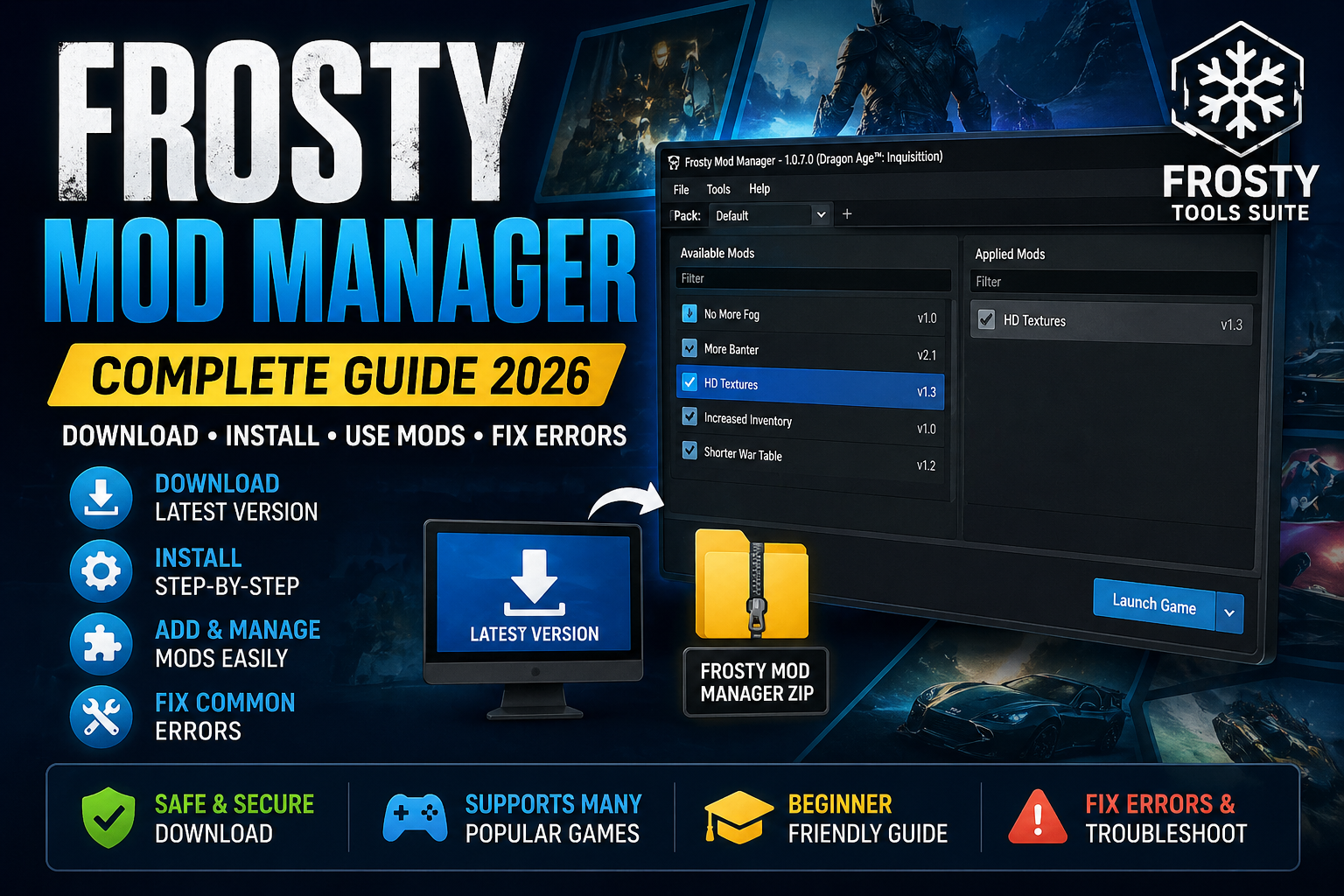
So you want to add mods to your EA game. Good news — you found the right tool.
Frosty Mod Manager is free, safe, and used by millions of gamers worldwide. It works with Dragon Age: Inquisition, NFS Heat, FIFA 18, Star Wars Battlefront 2, and more.
This guide shows you exactly how to set it up — even if you’ve never modded a game before.
✅ Quick Answer: Download Frosty Mod Manager from GitHub, extract it with WinRAR, right-click and Run as Administrator, then follow the setup. Done. Keep reading for the full step-by-step with screenshots and error fixes.
What Is Frosty Mod Manager?
Frosty Mod Manager is a free tool that lets you install mods on EA games.
Here’s the best part — it doesn’t touch your original game files. Your game stays safe. You can turn mods on and off with one click, and if anything goes wrong, just remove the mod.
It was built by the gaming community and it’s open source. That means the code is public — anyone can check it. That’s why it’s trusted by millions of players.
One important thing to know right away: you must always launch your game through Frosty Mod Manager if you want mods to work. If you launch the game directly from Steam or the EA App, your mods won’t show up.
Also Read: BG3 Script Extender: Install Guide (Patch 8)
Supported Games — Does It Work With Your Game?
Before downloading, check that your game is supported.
Frosty Mod Manager works with games built on EA’s Frostbite engine. Here’s the list:
| Game | Notes |
|---|---|
| Dragon Age: Inquisition | Most popular — huge mod library |
| Need for Speed: Heat | Car skins, visual mods |
| FIFA 18 | Kit packs, stadium mods |
| Star Wars Battlefront 2 | Skin swaps, audio mods |
| Battlefield 1 / V | Cosmetic mods |
| Mass Effect: Andromeda | Limited support |
| Plants vs. Zombies: GW2 | Community mods |
Your PC also needs:
- Windows 10 or 11 (64-bit)
- .NET Framework 4.7.2 or higher
- Administrator access
- Your game installed (Steam, EA App, or Origin)
Step 1 — Download WinRAR First
Before you download Frosty, you need a tool to open zip files.
The most popular option is WinRAR. It’s free. Just search “WinRAR download” in your browser and grab it from the official site. 7-Zip also works perfectly if you prefer that.
Why do you need this? Because Frosty Mod Manager comes as a zip file. You can’t use it until you unzip it. This is the step most beginners skip, and then they get confused.
✅ Tip: Install WinRAR before anything else. It takes 30 seconds and saves a lot of frustration later.
Step 2 — Download Frosty Mod Manager
Now let’s get the actual tool.
- Search “Frosty Mod Manager GitHub“ in your browser
- Click the official GitHub page (github.com)
- Go to the Releases section
- Find the latest version — 1.0.7.0
- Click the .zip file to download it
That’s it. Simple.
⚠️ Important: Only download from the official GitHub page. Do not download from random websites, YouTube descriptions, or file-sharing links. Those files can contain viruses. The official GitHub is the only safe source.
Step 3 — Set Up Frosty Mod Manager
This is the part that trips people up. Follow these steps exactly.
Create a New Folder
Go to your Desktop. Right-click and create a new folder. Name it anything — “Frosty” works fine. The name doesn’t matter at all.
This folder is just to keep things tidy. Trust me, you’ll thank yourself later when you’re not hunting through a messy downloads folder.
Extract the Zip File
- Go to your Downloads folder
- Drag the Frosty zip file into your new folder
- Right-click the zip file
- Hover over WinRAR → click Extract Here
- Wait for it to finish
- Delete the zip file — you don’t need it anymore
Find the Right File
Open your new folder. You’ll see a bunch of files in there.
Look for the one that says FrostyModManager and shows Application in the Type column. That’s the one you want. Ignore everything else — the .dll files and other stuff are just support files that run in the background.
Run It as Administrator
This step is critical. Do not skip it.
Right-click FrostyModManager.exe → Run as administrator.
⚠️ This is the #1 reason Frosty doesn’t work for people. Running it without administrator rights causes crashes, launch failures, and weird errors. Always right-click. Always run as admin.
First-Time Setup
The first time you open Frosty, it runs a setup. This takes a few minutes — sometimes longer. That’s normal. Don’t panic and don’t close it.
Here’s what happens:
- It scans for your games automatically. If it finds your game, click it to select it.
- Game not showing up? Click New, then browse manually to your game’s folder. This happens a lot when games are installed on a second hard drive or in a non-default location.
- Encryption key prompt? Just follow the instructions on screen. For most games this is automatic — Frosty grabs the key from your game files itself.
Once setup finishes, you’ll see the main Frosty screen. You’re ready to start adding mods.
How to Download Mods — Where to Get Them
The best place to find mods is Nexus Mods (nexusmods.com).
It has thousands of mods for every supported game. It’s free, safe, and the modding community trusts it completely.
Here’s how to find mods:
- Go to nexusmods website
- Search for your game (e.g. “Dragon Age Inquisition”)
- Pick a mod you want
- Go to the Files tab
- Click Manual Download
- Download the latest version
💡 Skip the premium download option. Manual download works perfectly fine and it’s free.
How to Install a Mod in Frosty Mod Manager
You’ve got your mod file downloaded. Now let’s install it.
- Open Frosty Mod Manager (run as admin, remember?)
- Click the Add Mods button — it looks like a plus icon
- Browse to your downloaded mod file
- Click Open
Your mod now appears in the left panel.
- Find your mod in the left panel — your newest mod is always at the top
- Click on it to select it
- Click Apply Mod — it moves to the right panel
- Click Launch Game
That’s it. Your game opens with the mod active.
Want to turn off a mod? Just uncheck the box next to it in the right panel. It won’t be active next time you launch. You don’t have to delete it — just uncheck it.
✅ Remember: Every single time you want mods active, launch through Frosty. If you open your game any other way, mods won’t load.
How to Use Frosty Mod Manager for Specific Games
Dragon Age: Inquisition (DAI)
DAI is the most modded game on Frosty. The community is massive. There are mods for character appearance, armour, hair, gameplay mechanics — basically everything.
Follow the standard install steps above. If a mod isn’t showing up in-game, run a compatibility check inside Frosty before launching. Also double-check that the mod version matches your game patch.
NFS Heat
NFS Heat mods are mostly visual — car liveries, paint jobs, visual effects. The setup is exactly the same as the general guide. Most NFS Heat mods are on Nexus Mods or the NFS Heat Discord community.
FIFA 18
FIFA 18 mods are mostly kit packs and stadium packs. One thing to watch: make sure the mod was made for your specific FIFA 18 patch. Old mods on new patches sometimes cause crashes.
Star Wars Battlefront 2
Battlefront 2 has great skin and audio mods on Nexus Mods. Setup is identical to the general guide. Just follow the steps above and you’re good.
How to Add an FB Collection
An FB collection is a bundle of multiple mod files packaged together.
Adding one is a little different from a single mod. Here’s how:
- Download the collection zip file
- Extract it with WinRAR into a folder — you’ll see multiple .fbmod files inside
- Open Frosty Mod Manager
- Click Add Mods
- Navigate to the extracted folder
- Press Ctrl + A to select all the files at once
- Click Open
- All the mods appear in the left panel — select them all and click Apply Mod
- Launch your game
💡 If Frosty shows a conflict warning, it means two mods are trying to change the same thing. Apply them in the order the mod author recommends on their download page.
Fixing Common Errors
Frosty Mod Manager Won’t Launch
The fix: Right-click → Run as administrator. That solves this 90% of the time.
Still not working? Try this:
- Right-click the .exe → Properties → Compatibility tab → tick “Run this program as an administrator” → Apply. Now it always runs as admin automatically.
- Getting a missing .dll error? Delete your Frosty folder and extract a fresh copy. The original extraction was probably incomplete.
- Update your .NET Framework to 4.7.2 or higher (free download from Microsoft).
Encryption Key Error
This happens because Frosty needs a key from your game to allow modding.
The fix: Let Frosty do it automatically — just follow the on-screen steps. If it fails, go to Steam or the EA App, click Verify game files, then try the Frosty setup again.
“Access to the Path is Denied”
This means Frosty doesn’t have permission to touch your game folder.
The fix: Run as administrator. Also check Windows Defender or your antivirus — sometimes it blocks Frosty from accessing game files. Add FrostyModManager.exe to your exclusions list.
Game Crashes After Launching
A mod is conflicting with something.
The fix:
- Uncheck every mod in the right panel
- Re-enable them one at a time
- Launch after each one
- When the crash comes back — that last mod is the problem
- Remove it or find an updated version on the mod’s download page
Frosty Fix — When Nothing Else Works
If Frosty Mod Manager just won’t cooperate with your specific game, try Frosty Fix.
It’s a companion tool that patches compatibility issues Frosty can’t handle alone. Search “Frosty Fix” on Nexus Mods or GitHub, download it, run it as admin, and point it at your game folder.
Frosty Can’t Find Your Game
Click New in the game list and manually browse to your game’s installation folder. This is super common when games are on a second hard drive or installed somewhere non-standard.
Is Frosty Mod Manager Safe?
Yes. 100% safe — when you download it from the official GitHub.
It’s open source. That means every line of code is publicly visible. Anyone can look at it. That’s actually a stronger safety guarantee than most closed software.
Why does antivirus flag it?
Because modding tools need deep access to your game files and require admin rights — and that behaviour looks suspicious to automated scanners. It’s a false alarm. Add it to your antivirus exclusions and you’re fine.
Safe download checklist:
- ✅ Download ONLY from the official GitHub page
- ✅ File size should match the official release
- ✅ Never download from forums, YouTube descriptions, or file-sharing sites
- ✅ If antivirus flags it — add to exclusions ONLY after confirming it’s the official download
How to Uninstall Frosty Mod Manager
Good news — Frosty doesn’t have a traditional installer so uninstalling is dead simple.
- Open Frosty Mod Manager
- Uncheck all active mods in the right panel
- Launch your game once to confirm it runs clean without mods
- Close Frosty
- Delete the Frosty folder from your Desktop (or wherever you put it)
- Done
💡 Game acting weird after uninstalling? Go to Steam or the EA App → right-click your game → Verify game files. This restores everything back to normal.
FAQ — Quick Answers
-
What games work with Frosty Mod Manager?
Dragon Age: Inquisition, NFS Heat, FIFA 18, Star Wars Battlefront 2, Battlefield 1 and V, Mass Effect: Andromeda, and Plants vs. Zombies: GW2. All built on EA’s Frostbite engine.
-
Is Frosty Mod Manager free?
Yes, Frosty Mod Manager is completely free. There is no paid version, no premium plan, and no hidden fees. You can download it, install it, and use it forever without spending a single penny. It is also open source, which means anyone can look at the code and verify it is safe.
-
Why isn’t Frosty Mod Manager launching?
Almost always because it’s not running as administrator. Right-click FrostyModManager.exe and select Run as administrator. If that doesn’t work, update your .NET Framework and install Visual C++ Redistributables from Microsoft’s website.
-
Do I have to launch my game through Frosty every time?
Yes, every time you want mods active. If you open the game directly from Steam or EA App, Frosty can’t apply the mods and your game loads without them.
-
Is Frosty Mod Manager safe?
Yes. Open source, publicly audited code. Download only from the official GitHub and you’re completely safe.
-
How do I use Frosty Mod Manager for Dragon Age Inquisition?
Same as any other game — install Frosty, add your DAI mods using the Add Mods button, apply them, then launch DAI through Frosty. The Nexus Mods page for DAI has thousands of options.
-
What is Frosty Fix?
It’s a companion tool that fixes compatibility issues for specific games that standard Frosty Mod Manager struggles with. Available on GitHub and Nexus Mods.
Final Thoughts
Frosty Mod Manager is honestly one of the easiest modding tools out there once you get past the initial setup.
The golden rules:
- Always run as admin
- Always launch from Frosty when you want mods
- Only download mods from Nexus Mods or trusted sources
- Download Frosty only from the official GitHub
Follow those four rules and you’ll never have a problem.
Got a specific error that isn’t in this guide? Drop a comment below and we’ll help you fix it.