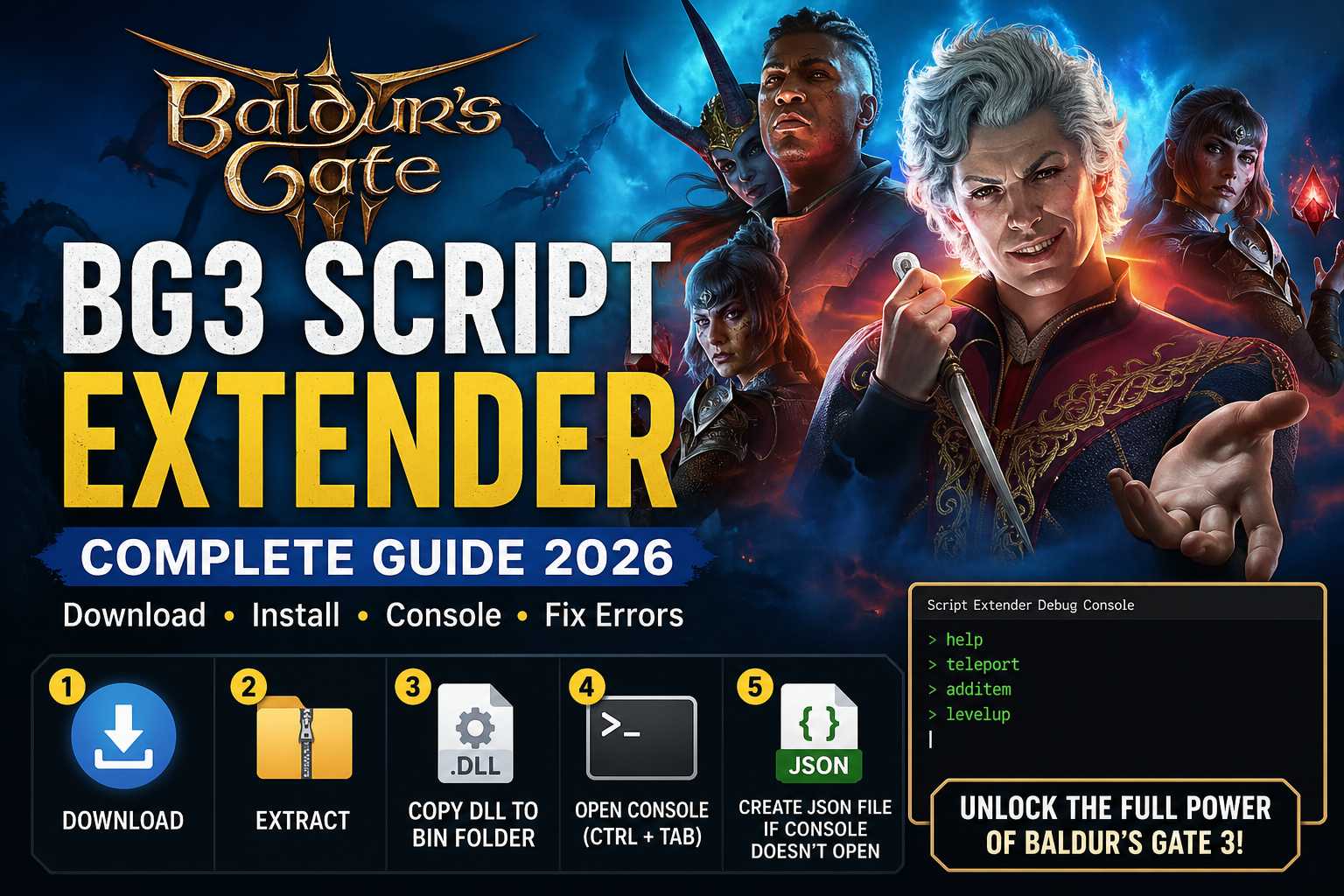
If you want to use cool mods in Baldur’s Gate 3, you have probably heard of the BG3 Script Extender. Maybe a mod you downloaded said “requires Script Extender” and you had no idea what that means.
Don’t worry — you are in the right place.
This guide will walk you through everything in plain, simple language. No confusing tech words. No skipping steps. By the end, you will have the Script Extender installed, your console open, and your mods running — all while keeping your achievements active.
Let’s jump in.
What is the BG3 Script Extender?
The BG3 Script Extender — also called BG3SE — is a free tool made by a developer named Norbyte. Think of it like a super-powered add-on for Baldur’s Gate 3 that lets mod makers do things the base game simply cannot do on its own.
Normally, BG3 only lets you change a few things through mods. But with Script Extender installed, mod creators can write brand new rules, add new abilities, change how the game thinks, and do all kinds of amazing stuff — like smarter enemies, new character classes, or totally new story events.
🏠 Think of it this way: Baldur’s Gate 3 is like a house. The game’s built-in mod tools give you paint and furniture. The BG3 Script Extender gives you the tools to knock down walls and build a whole new room.
Why do you need it?
Many popular mods on Nexus Mods require Script Extender to work. If you download a mod and the game crashes, or the mod just does nothing — Script Extender is probably missing.
Who made it?
Norbyte, a respected developer in the BG3 modding community. The tool is free, open-source, and trusted by millions of BG3 players worldwide.
Is it safe?
Yes. It is one of the most widely used modding tools for BG3. Just make sure you download it from Norbyte’s official GitHub page only.
Also Read: NetherSX2 APK Download (2026) – Setup Guide Android
What Do You Need Before You Start?
Before installing, make sure you have the right setup. Here is a quick checklist:
- ✅ Baldur’s Gate 3 on the latest patch — Script Extender only works on the most recent game version. Right now that is Patch 8. If your game is older, update it first.
- ✅ A Windows PC or Steam Deck — Script Extender works on both. The steps are slightly different for Steam Deck.
- ✅ Steam or GOG version — both work fine.
- ✅ DX11 or Vulkan — Script Extender works with both graphics modes.
- ✅ About 5 minutes of free time — once you know the steps, the whole install is very quick.
⚠️ Important: Script Extender only works with the LATEST game patch. If BG3 gets a big update and you have not updated your game yet, Script Extender may stop working until Norbyte releases a new version. This usually happens within a few days of any big BG3 update.
How to Install BG3 Script Extender — Manual Method (Step-by-Step)
This is the most reliable way to install Script Extender. It sounds technical, but it is actually very simple. You are just copying one file into one folder.
Step 1 — Download the file
Go to Norbyte’s official GitHub page and find the download link. Click the manual download option. The file you are downloading is about 6,472 KB in size. If the file you downloaded is much bigger or much smaller than that, something went wrong — try downloading again.
✅ Tip: Always download Script Extender from Norbyte’s official GitHub only. Do not use random websites. The Nexus Mods version is also fine, but GitHub is always the most up-to-date source.
Step 2 — Extract the ZIP file
Once the download finishes, open your Downloads folder. You will see a ZIP file. Right-click it and choose “Extract All”. A new folder will appear. Open it and you will find a file called:
DWrite.dllThat one small file is the entire Script Extender. That is all you need.
Step 3 — Find your BG3 bin folder
Now you need to find where Baldur’s Gate 3 is installed on your computer. For most Steam users, the exact path is:
C:\Program Files (x86)\Steam\steamapps\common\Baldurs Gate 3\binHere is the quickest way to get there:
- Open File Explorer
- Click This PC on the left side
- Open your Windows drive (usually C:)
- Navigate to: Program Files (x86) → Steam → steamapps → common → Baldurs Gate 3 → bin
✅ Shortcut: In Steam, right-click on Baldur’s Gate 3 → Manage → Browse Local Files. This opens the game folder directly. From there, just open the bin folder.
Step 4 — Copy DWrite.dll into the bin folder
Simply drag and drop (or copy and paste) the DWrite.dll file directly into the bin folder. Do not put it inside any other folder inside bin. It needs to sit right at the top level of the bin folder, next to the other files already there.
⚠️ Double-check: Make sure DWrite.dll is in the bin folder — not in the main Baldurs Gate 3 folder, and not in a subfolder inside bin. Wrong folder = Script Extender will not work.
Step 5 — Launch BG3 and confirm it worked
Start Baldur’s Gate 3 normally. It may take a little longer to load than usual — that is completely normal. Any time you add mods or tools, BG3 takes an extra moment or two to start up. Just wait it out.
Once you reach the main menu, look at the bottom corner of your screen. You should see something like:
Script Extender v15 is loaded, built on [date]If you see that message — congratulations! Script Extender is installed and working perfectly.
How to Install Using BG3 Mod Manager — Easier Method
If you already use BG3 Mod Manager (BG3MM), this method is even simpler. You do not need to touch any files manually.
- Download BG3 Mod Manager from LaughingLeader’s official GitHub page
- Open BG3MM and click the Tools menu at the top
- Click “Download & Extract Script Extender”
- Wait for it to finish — BG3MM handles everything automatically
- Launch Baldur’s Gate 3 once — Script Extender will finish installing on its own
- Look for the SE version number in the bottom corner of the main menu
✅ Bonus tip: BG3 Mod Manager also lets you enable the console and manage achievements — all from one easy settings screen. Go to Settings → Open Preferences → Script Extender.
What Happens After You Install — What to Expect
First-time installers often get confused here because a few things happen that look like problems — but they are completely normal. Here is exactly what you will see:
A popup saying mods are installed
When you launch BG3 for the first time after installing Script Extender, a notification will pop up saying something like “Mods are installed.” This will appear every single time you start the game.
This is NOT an error. It is just BG3 letting you know that something has been added. You can safely close it. There is usually an option to stop it from showing again if it bothers you.
The game loads a bit slower
Do not be alarmed if BG3 takes longer to start after installing Script Extender. This is completely normal. Any mod or tool you add makes the game take an extra moment or two to get ready. Just wait it out — it will load fine.
The confirmation text in the corner
As mentioned above, look for “Script Extender v[number] is loaded” in the bottom corner of the main menu. That is your green light. If you see it, everything is working perfectly.
⚠️ No confirmation text visible? Do not worry. Jump to the Troubleshooting section below — we have a fix for every common problem.
How to Open the Script Extender Console
The Script Extender console is like a command window where you can type special commands while playing BG3. It is mainly used by mod makers to test their mods, but players use it too for things like adding gold or testing items.
Do you actually need the console?
Most players do NOT need to open the console at all. Script Extender works quietly in the background without it. But if you want to use console commands, or a guide you are following says to open it, here is how.
Step 1 — Create the settings file (only if needed)
Sometimes the console does not appear automatically. If that happens, you need to create a small settings file. Here is how:
- Open Notepad (search for it in the Windows Start menu)
- Type exactly this:
{
  "CreateConsole": true
}- Save the file and name it exactly: ScriptExtenderSettings.json
- Place this file in the same bin folder where you put DWrite.dll
⚠️ The filename must be exactly right. If it saves as ScriptExtenderSettings.json.txt, rename it and remove the .txt part. One wrong letter and it will not work.
Step 2 — Open the console in-game
Launch BG3. Once you are in the game, try one of these keyboard shortcuts:
- Ctrl + F12 — listed in the official documentation
- Ctrl + Tab — also works for many players
Then press Alt + Tab to bring up the console window on your screen.
✅ Critical tip: When the console opens, press Enter once before you start typing anything. The console will not accept your commands until you press Enter first. This trips up almost everyone the first time — now you know!
Does BG3 Script Extender Disable Achievements?
No. BG3 Script Extender does not disable your achievements. Achievements are turned ON by default the moment you install Script Extender. You do not need to change any settings or edit any files to keep them active.
This is one of the biggest worries people have before installing — and it is completely unfounded. Norbyte built achievement support right into Script Extender from the very beginning.
Script Extender re-enables achievements for modded games automatically. The setting that controls this looks like this under the hood:
{
  "EnableAchievements": true
}
You do not need to add this yourself. It is already set to true by default.
The only way your achievements could get affected is if a specific mod you installed disables them — that has nothing to do with Script Extender itself. If you are worried, test it by earning a simple achievement right after installing.
How to Update or Remove BG3 Script Extender
How to update
The good news: Script Extender updates itself automatically. Every time you launch BG3, Script Extender quietly checks for a new version and downloads it in the background. You do not have to do anything at all.
If the automatic update fails — for example, if your internet connection or firewall blocks it — you can update manually. Just download the latest DWrite.dll from Norbyte’s GitHub and replace the old one in your bin folder. Done.
How to remove Script Extender
Removing Script Extender is just as easy as installing it:
- Go to your BG3 bin folder
- Find DWrite.dll and delete it
- Launch BG3 — it will run completely normally without Script Extender
✅ Note: If you created a ScriptExtenderSettings.json file, you can delete that too. But leaving it there will not cause any harm.
Troubleshooting — Common Problems and How to Fix Them
Something not working? Do not give up. Here are the most common problems and their exact fixes.
Script Extender is not showing in the main menu corner
This means SE is not loading at all. Check these things:
- DWrite.dll is in the wrong folder. It must be inside the bin folder — not the main BG3 folder. Go back and check.
- Your game is not on the latest patch. Script Extender only works with Patch 8 right now. Update BG3 first.
- You downloaded the wrong file. Make sure the file is called DWrite.dll and is around 6,472 KB. Anything else is the wrong file.
Script Extender update is stuck or failed
Sometimes Script Extender cannot connect to the internet to update itself. This is common in some regions where GitHub runs slowly. Here is what to try:
- Use a VPN — turn it on before launching BG3 and Script Extender will update without problems
- Check your firewall — make sure BG3 is allowed through your firewall settings
- Update manually — download the latest DWrite.dll from GitHub and replace the old one in your bin folder
I see errors when the game loads
Take a breath. Most errors you see during loading are caused by individual mods — not Script Extender itself. Here is how to figure out what is happening:
- Remove all your mods temporarily
- Launch BG3 with only Script Extender installed
- If the errors disappear — one of your mods is the problem, not SE
- Add your mods back one by one to find which one is causing the issue
⚠️ Remember: The vast majority of Script Extender “errors” are actually mod conflicts or outdated mods. Always check if your mods have been updated for the current BG3 patch.
The console is not appearing
If you press Ctrl+F12 or Ctrl+Tab and nothing happens:
- Make sure the BG3 game window is in focus — click on the game first before pressing the shortcut
- Create the ScriptExtenderSettings.json file with CreateConsole: true (see the console section above)
- After the console opens, remember to press Enter once before typing — it will not work until you do this
Script Extender works on PC but not Steam Deck
Steam Deck installs are slightly different. You need to copy DWrite.dll to this path on your Deck:
/home/deck/.steam/steam/steamapps/common/Baldurs Gate 3/bin/Search for “BG3 Script Extender Steam Deck” on Steam Community for a detailed step-by-step guide made specifically for the Deck.
FAQ — Your Questions Answered
-
Is BG3 Script Extender safe to use?
Yes, completely safe. It is a free, open-source tool made by a well-known and trusted developer in the BG3 modding community. Millions of players use it every day. Just make sure you always download it from Norbyte’s official GitHub or the official Nexus Mods page only.
-
Do I need Script Extender to play Baldur’s Gate 3?
No. Script Extender is only needed if you want to use mods that require it. You can play BG3 completely normally without it. Most basic and cosmetic mods do not need it either.
-
Does Script Extender work on the GOG version of BG3?
Yes. Script Extender works with both the Steam and GOG versions of Baldur’s Gate 3 with no difference in the install process.
-
Can I use Script Extender in multiplayer?
Script Extender itself does not break multiplayer. However, some mods that use it might cause issues if your friend does not have the same mods installed. For the safest multiplayer experience, make sure everyone in the game has the exact same mods and the same Script Extender version.
-
What mods need Script Extender?
Hundreds of the most popular and complex mods on Nexus Mods require Script Extender. If a mod description says “requires BG3SE” or “requires Script Extender” — install SE first, then install the mod.
-
Does Script Extender work on Mac?
Currently, Script Extender is designed for Windows PC and Steam Deck (via Linux/Proton). It does not have official Mac support at this time.
-
What is the difference between Script Extender v15, v24, v31?
These are just version numbers. Each new version is built for a specific BG3 game patch. You do not need to worry about picking the right version manually — Script Extender updates itself automatically whenever BG3 updates.
-
I installed Script Extender but my mod still does not work — why?
The mod itself is probably outdated and has not been updated for the current BG3 patch. Check the mod’s page on Nexus Mods and look at the Posts or Bugs tab. Mod creators usually post patch compatibility updates there. You can also try removing other mods one by one to check for conflicts between mods.
Final Thoughts
Installing the BG3 Script Extender sounds scary the first time — but as you now know, it is really just copying one small file into one folder. That is it.
Once it is set up, it quietly runs in the background, making your mods work better, keeping your achievements active, and unlocking a whole new world of Baldur’s Gate 3 possibilities.
If you run into any trouble, the Troubleshooting section above has you covered. And remember — most problems are caused by outdated mods, not Script Extender itself.